Mixing & export
Third-party WAM effects
WAM plugins run in the browser. In Studio, you can add them to audio or MIDI tracks and the master bus, save their settings with the project and include their processing in an exported mix.
Add a plugin
- Open FX · Effects → Entire track → WAM plugin. The track sidebar mixer and Master bus also provide WAM controls.
- In the mixer or master, find Third-party plugins · WAM; in the FX panel, expand WAM plugin.
- Choose an effect and press Add plugin.
- In its card, press Plugin parameters to load the available controls.
- Adjust the effect, listen to the result and save the project.
Effects load from the webaudiomodules.com community catalog, so loading requires a network connection. Individual parameter names come from the plugin itself and may remain in English.
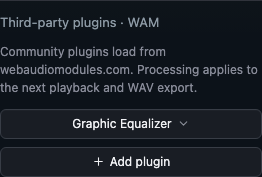 Scroll the mixer to Third-party plugins · WAM. Choose an effect, then click Add plugin. Plugin names stay in their original language.
Connect another module by URL
Enter a direct HTTPS JavaScript-module address from the official webaudiomodules.com community catalog in WAM module URL, then press Check and add. Use a module under /community/plugins/ ending in .js, without a query string or fragment. A regular description page is not a module URL. Repeat submission is disabled during validation; on failure, correct the address or check the connection.
Validation loads the module and its parameters on the current device. It does not guarantee compatibility across browsers or replace listening and export checks. The project stores the URL and settings, so the external module must remain available when opening it on another device. A chain holds up to four WAM plugins.
See Effects: clips and tracks for choosing built-in processing or plugins. WAM connects to tracks and the master; individual clips use built-in FX.
Choose an effect
| Plugin | Use |
|---|---|
| Graphic Equalizer | Frequency correction for a track or the entire mix |
| Ping Pong Delay | Delay with repeats moving between the left and right channels |
| KBVerb | Adding reverb and space |
To correct one instrument, add the effect in its track mixer. A master plugin processes the combined result and affects every part.
Manage the chain
Enabled lets you compare the effect with bypass while retaining its settings. Wet mix controls the processed share: 0% leaves the dry signal, 100% uses the processed signal.
Earlier and Later change plugin order. Remove plugin removes the selected effect. Compare alternatives at similar loudness: a level increase can create a misleading impression of improvement.
WAM and the built-in Effect chain are separate lists. Track WAM plugins run before the built-in channel effects. Master plugins run before final master processing. Arbitrarily interleaving WAM and built-in effects in one list is currently unavailable.
Playback, live mode and export
In the standard mode, changes apply on the next playback start. With Live mixing enabled, parameters of running plugins update during playback; changing the chain's membership or order requires preparation of a new signal path. When a track's processing is frozen, its processed audio is recalculated when relevant settings change.
Mix export includes enabled plugins. Pre-mixer stems · ZIP transfers source channels and excludes channel and master effects. Built-in processing on the clips themselves is already part of those channels, so the ZIP is not a replacement for original source files. See the export guide for details.
If a plugin does not load
Check your connection and the error message, then retry loading parameters or starting playback. If an effect is temporarily unavailable, you can explicitly disable it and evaluate the result without processing. An enabled plugin's failure should not silently produce a dry mix instead of the expected result.
Supported effects include the built-in catalog and compatible WAM modules addressed within the official community catalog. Arbitrary domains, WAM instruments and native VST3/AU plugins are not supported here. Original plugin interfaces are not embedded; Studio uses its shared controls.
Continue with live mixing and freezing and mix analysis.