Getting started
Make your first track in Oscivara
Start with a small musical idea, bring a few tracks together and save the result. You do not need to understand synthesis or read music to begin.
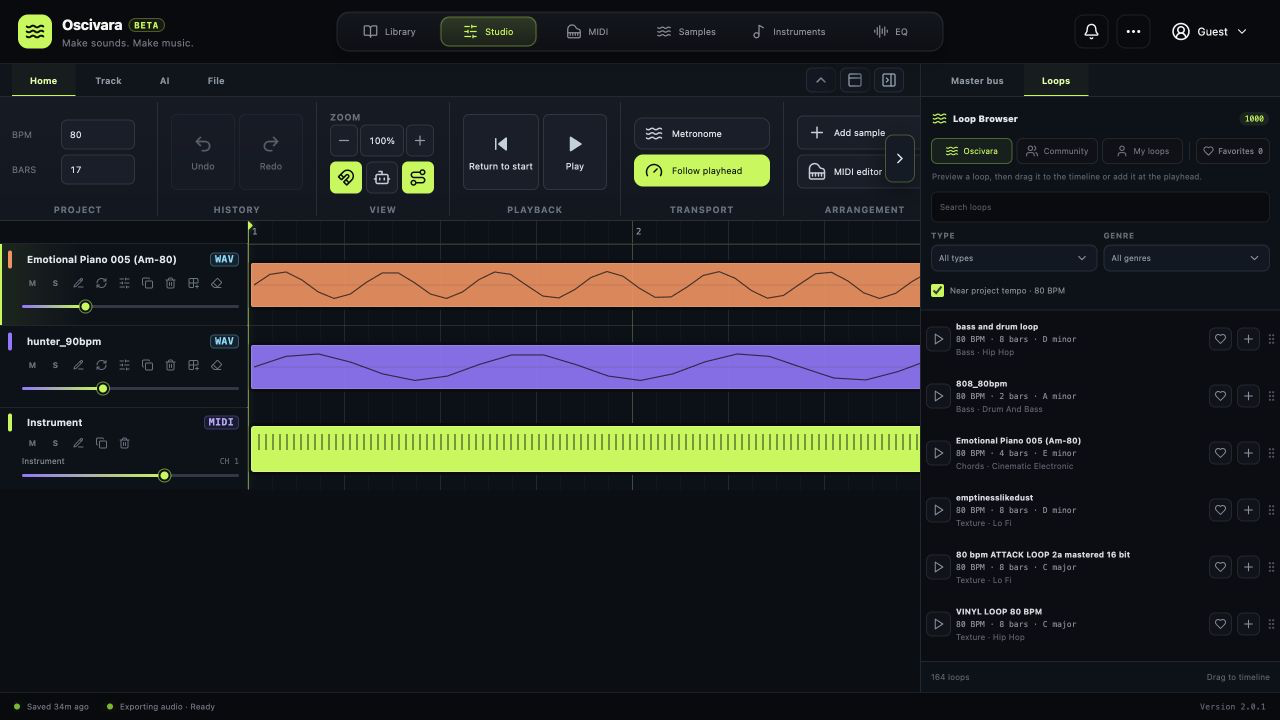 The Studio workspace, shown with an example arrangement. Your track names and content will be different.
Choose a starting point
Already have a recording? Drag a WAV or MP3 file onto an empty part of the timeline. Starting from an idea? Use a loop, a MIDI part or SteppeMind. You can combine these approaches in the same project.
You can explore the manual tools by opening Studio. Cloud saving, generation and stem separation require a registered account. Cloud tasks have a cost and usage limits; check the information in the application before starting one.
Put together a small project
- Open Library and go to your projects. Choose Create project, then Studio. Give it a name you will recognise tomorrow, such as “First idea — gentle groove”.
- Open Studio. Show the Loop browser on the right if it is hidden. Preview a few loops, then use the add action on a loop you like.
- Press Play in the Studio ribbon. A library preview and project playback are separate actions: use the Studio transport to hear the arrangement.
- Add a second loop or a MIDI part. If the sounds compete, lower one track first. You do not need to reach for effects straight away.
- Use the return-to-start control and listen from the beginning. Use the available loop controls when you want to work on a short section repeatedly.
Finishing a small idea with two or three parts is a useful first goal. It is easier to hear what each change does than in a large arrangement.
Try SteppeMind
Open the AI agent from the top bar. SteppeMind Composer makes finished audio, while SteppeMind Maestro helps you create an editable MIDI arrangement. Choose Maestro if you want to change individual notes. Start with Composer if hearing a complete track is your priority.
For example: “Calm instrumental music for an evening walk. Soft piano, a warm bass and a restrained beat. Begin simply, then build gently in the middle.” Listen to the proposal before applying it to your project.
Save your work and download the music
Press Save and check the status bar at the bottom. Saving in this browser is not the same as completing a cloud upload. To continue on another device, the project must be stored in the cloud and its synchronisation must finish.
To make a file for listening, open the File tab in Studio and choose Export mix. Saving a project keeps the editable arrangement; exporting produces an audio file. Keeping both is a good habit.
Choose your next step
- Explore the workspaces if you are still finding your way around.
- Split a finished track into stems to work with the voice, rhythm and bass separately.
- Edit a MIDI pattern to make an existing musical idea your own.
If you hear nothing, start with the playback checklist. Do not delete your project or clear browser data as a first troubleshooting step.