Stem separation
How to split a track into stems
Separate vocals, drums, bass and other instruments to build a new version of your music. The original track stays in your project.
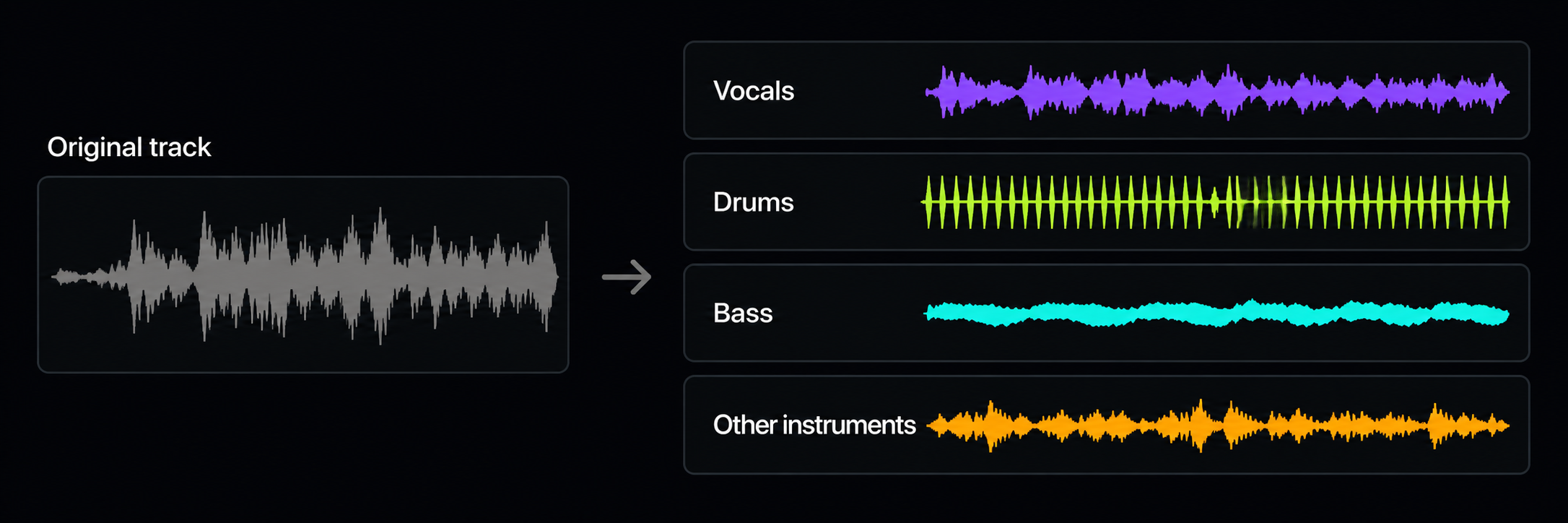 A conceptual separation diagram. The waveforms are illustrative, not a player or a promise of separation accuracy.
What you need
Use a finished WAV or MP3 already added to Studio, or a SteppeMind Composer result. You need a registered account, an internet connection and enough credits. The SteppeMind task window shows the current cost and maximum duration.
If your recording exceeds the displayed limit, prepare a shorter excerpt. Stem separation and ordinary timeline import have different limits.
Start separation
There are three ways to reach the same feature:
- From Composer: choose the separate-into-stems action in the finished audio card. This is useful when the track has just been generated and is not yet part of the arrangement.
- From the Studio ribbon: select the intended audio clip, open the Track tab and choose the stem-separation action.
- From the timeline: right-click the intended audio clip and choose the stem-separation action from its context menu.
A separate task appears in SteppeMind. Check the source title and project before proceeding. MIDI contains notes, not a recording; to separate a MIDI part, first turn it into audio.
Wait for the result or cancel
The audio is prepared first. The task may then wait in a queue before resources load, separation runs and the results are saved. A queued status is normal, not a reason to submit the same track repeatedly.
Use Cancel to stop the task. Wait for confirmation: stopping work that has already begun may take a moment. Closing SteppeMind does not itself cancel server processing. If the connection drops temporarily, return to task history after it recovers.
Listen to each part
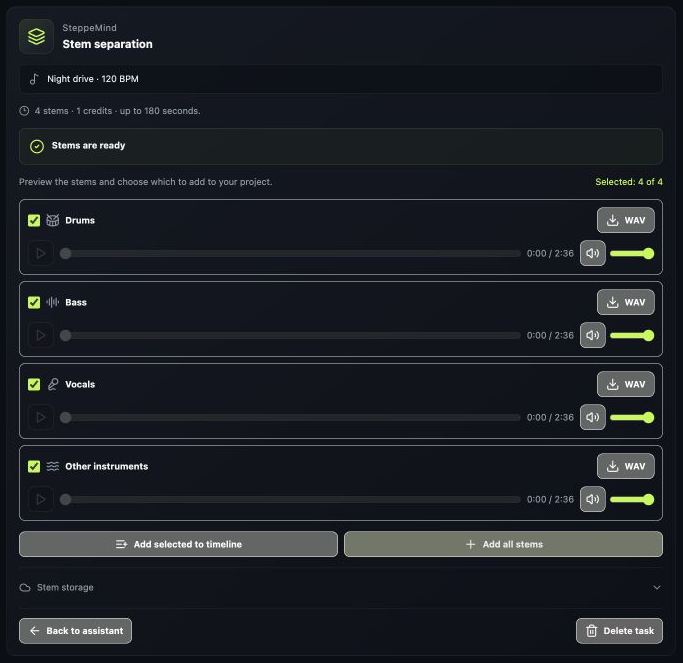 The actual Oscivara panel rendered with example data. It illustrates the controls, not the model's measured performance.
The result contains Vocals, Drums, Bass and Other instruments. Listen to them one at a time. Starting another stem preview stops the previous preview so they do not overlap.
“Other instruments” combines material outside the first three groups. It is not a separate guitar, piano and synthesiser for every instrument. If the original has no voice, the vocal stem may be nearly empty or contain voice-like sounds.
Add what you need
- Keep the required stems checked and use the add-selected action. Use Add all stems to bring in all four together.
- Wait for the added-and-saved confirmation. If you switched projects, return to the original one: the task belongs to it.
- Find the new tracks in Studio. Mute the original track before listening to the separated parts together. Otherwise both versions play at once, making the mix louder and the result harder to judge.
- Adjust the balance and check the project save status. Each part also has a Download WAV action.
Keep the result safely
Previewing a result in task history is not enough for long-term storage. Add the parts you need to the project and check that cloud saving completes. The task card shows how long unused results are kept. Saved project references protect the stems in use from that cleanup.
Storage uses lossless FLAC, while a lighter audio copy is used for quick previews. WAV downloads are prepared on request. Read more about project storage and file sizes.
If the result sounds unusual, read how to assess separation quality. Running the same separation again does not guarantee cleaner parts.